Updating the Price Code for a Drug
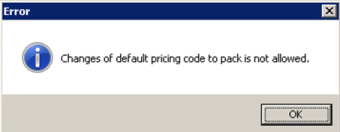
If you choose to change your Price Code, ensure that you complete the 4 steps below. If you previously filled a prescription for a monitored pack size and then attempt to update the Price Code, you will receive the error prompt shown below. In this scenario, you must reset the inventory for the drug and then proceed to follow the 4 steps outlined below.
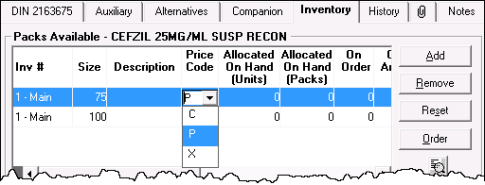
- Update the price code in the drug file.
- Search for and select the DIN.
- Select the Inventory tab.
- In the Packs Available section, select the appropriate price code for the corresponding pack size from the Price Code dropdown list:
- P = Pack Price
- C = Unit Price
- X = Unit Price for ODB Eligible Drugs
- Select the Save button. The product will use the new Price Code, acquisition cost and supplier prices to determine pricing. At this point, you can continue to monitor the product, or stop monitoring it.
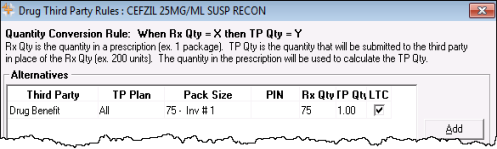
- Add or update any third party rules attached to the DIN(s).
- Search for and select the DIN.
- Select the Alternatives tab.
- Select the TP Rules button. The "Drug Third Party Rules" window appears
- Review any existing third party rules in this window.
- If you need to add a third party rule, select the Add button and enter the appropriate conversion rule (i.e. If you update your price code from C to P for an inhaler, then your conversion rule will be similar to Rx Qty = 1 and TP Qty = 60)
- Select the OK button.
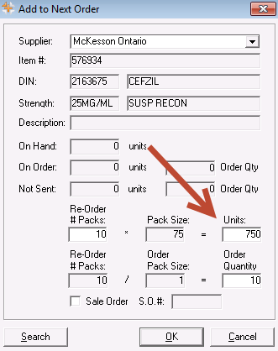
- When placing orders, verify that the quantity being ordered is correct (i.e., ensure you are not ordering 60 of one type of inhaler). Your inventory for the affected DINs will automatically change to reflect the new price code.
- Search for and select the DIN.
- Select the Inventory tab.
- Highlight the pack size you modified the price code for.
- Select the Order button.
- Verify the total number of units your are ordering.
- Select the OK button to add the order to the Order Pad, or Cancel to exit the window.
- Ensure that when you fill a prescription the correct Qty appears. If you fill an incorrect quantity due to the price code change, do the following to correct it as soon as possible:
- Run a Gross Profit by Prescription for each DIN to identify prescriptions that have been filled for these drugs.
- Rebill the Prescription using the appropriate quantities based on price code (depending on the third party reversal period).